Create a solution.
You can skip this procedure if you already have a solution in which you want to create an app or to which you want to link an app.
sign into Power Apps, and then (if necessary) switch to the appropriate environment:
- If you want to create an app from within a solution, switch to any environment that contains a Dataverse database.
- If you want to link an existing app to a solution, switch to the environment that contains that app.
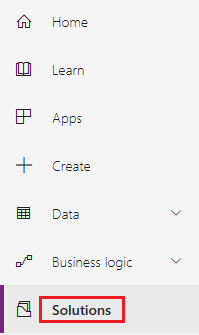
In the left navigation bar, select Solutions.
In the banner under the title bar, select New solution.

In the window that appears, specify a display name, a publisher, and a version for your solution.

A name (with no spaces) will be generated automatically based on the display name that you specify, but you can customize the generated name if you want. You can specify the default publisher for your environment and 1.0 for the version if you don't have specific needs in those areas.
Near the upper-left corner, select Save and Close.
Create a canvas app in a solution
You can create a blank canvas app from within a solution. You can't automatically generate a three-screen app or customize a template or sample app from within a solution.
Sign into Power Apps.
If necessary, switch to the environment that contains the solution in which you want to create a canvas app.
In the left navigation bar, select Solutions.
In the list of solutions, select the solution in which you want to create a canvas app.
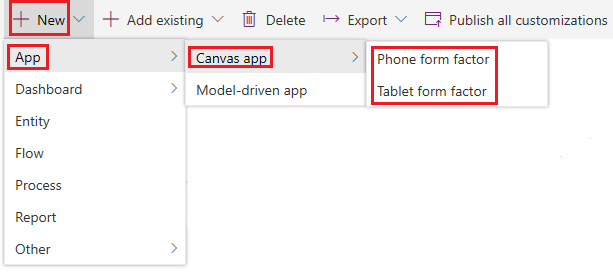
In the banner under the title bar, select New > App > Canvas app, and then select the form factor (phone or tablet) of the app that you want to create.
Power Apps Studio opens with a blank canvas in another browser tab.
Create your app (or make at least one change), and then save your changes.
On the browser tab where you selected your solution, select Done to refresh the list of components in your solution.
Your new app appears in the list of components for that solution. If you save any changes to your app, they will be reflected in the version that's in the solution.
Add an existing canvas app to a solution
If you want to add an app to a solution, both must be in the same environment, and the app must have been created from within a solution.
sign into Power Apps.
If necessary, switch to the environment that contains the solution to which you want to link an app.
In the left navigation bar, select Solutions.
In the list of solutions, select the solution to which you want to link an app.
In the banner under the title bar, select Add existing > App > Canvas app.

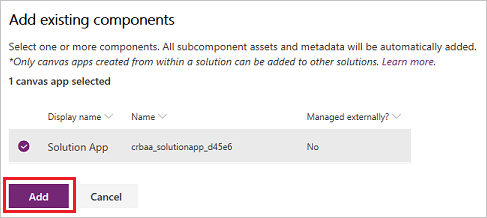
A list of canvas apps that were created within a solution in this environment appears.
In the list of apps, select the app that you want to link to the solution, and then select Add.


No comments:
Post a Comment