Here, we will see how to create a SharePoint list in a SharePoint site that retrieves from another SharePoint list.
For example, we have a sample SharePoint list having some random data on a specific SharePoint site.

Now we will call an API to SharePoint using JSON that will get all the information from the above SharePoint list and create a new SharePoint list on another SharePoint site. To implement this, we are going to create a flow and the following steps are:
- On Power Automate, create an instant cloud flow that will trigger the flow manually.
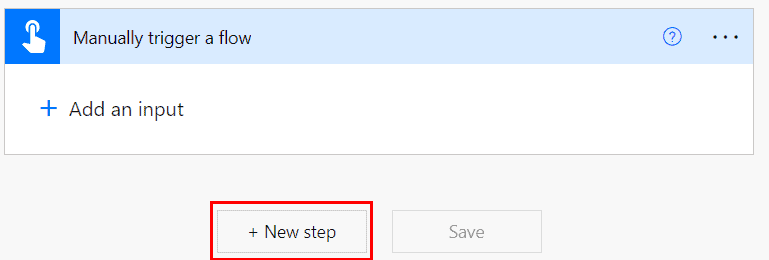
- Next, we will add a ‘Send an HTTP request to SharePoint‘ action to retrieve the data from the above list of the source SharePoint site.
- Click on + New step > Send an HTTP request to SharePoint. Give the source SharePoint site address and the below parameters:
- Method – POST
- Uri-_api/Microsoft.Sharepoint.Utilities.WebTemplateExtensions.SiteScriptUtility.GetSiteScriptFromList()
- Headers–
- accept – application/json;odata=verbose
- content-type – application/json;odata=verbose
- Body-
{
  "listUrl": "https://tsinfotechnologies.sharepoint.com/sites/<Source_SharePoint_SiteName>/Lists/<List_Name>/"
}
- Now save the flow and run it. We can see the JSON code in the body of the ‘send an HTTP request to SharePoint‘ action. Copy those codes.

- Now, we will parse the JSON code to create a new SharePoint list. Click on +New step > add the ‘Parse JSON’ action. Set the properties such as:
- Content – set the belowexpresstoion
outputs('Send_an_HTTP_request_to_SharePoint')?['body']?['d']?['GetSiteScriptFromList']- Schema – click on the ‘Generate from sample’ and paste the json code that copied from the above action.
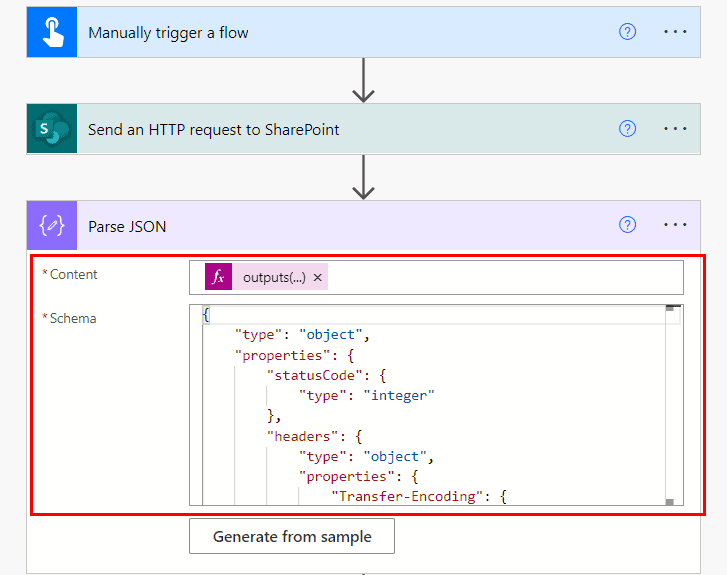
- To create a list on another SharePoint site, add another ‘Send an HTTP request to SharePoint ‘ action, provide the destination SharePoint site address, and set the rest properties such as:
- Method- Post
- Uri- _api/Microsoft.Sharepoint.Utilities.WebTemplateExtensions.SiteScriptUtility.ExecuteTemplateScript()
- Headers-
- accept – application/json;odata=verbose
- content-type – application/json;odata=verbose
- Body- paste the below expression
{"script": "{\"actions\":@{replace(replace(string(body('Parse_JSON')?['actions']),'\','\\'),'"','\"')}}"}
Now the flow is ready to run, so just click on save, and test it manually. We can see it will create a new blank list in the provided SharePoint site like below:

This is how to use the JSON to create a SharePoint list in the Power Automate REST API.


No comments:
Post a Comment