Offline capability for canvas apps is only available while running the apps using the native Power Apps Mobile players on iOS, Android, and Windows.
Canvas apps running in web browsers can’t run offline, even when using a web browser on a mobile device.
Step1: Check the Connectivity
Identifying the network connection status can help you decide whether to go online or offline.
To check the connection status to know whether or not the app is connected, we can use these formulas
Connection.Connectedthat returns true if internet is connected.
Or you can use,
Connection.Meteredthat returns false if internet is not connected.
You can insert a label to show to the user whether the app work online or offline, you can use the below formula in the text property of the label
If( Connection.Connected, "Connected", "Offline" )
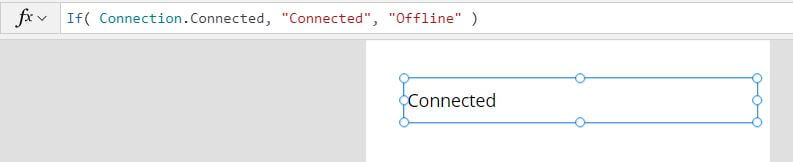
Connected will inform you whether your app is online or offline. Check this information with Connection.Connected which returns a boolean value.
So, When a user launches the app:
- If the device is connected to the internet, the app retrieves data from the data sources through the connectors .
- If the device is not connected to the internet, the app uses the LoadData function to load data from a local cache file that done using the SaveData function.
Things will just work when you’re connected, and we won’t have to worry about it too much.
However, if there is no connection, it is critical to temporarily store the data on your mobile device. So let’s know how to save data while the app is Offline and use the powerapps offline capabilities
Step 2: Use Collection to collect your data
When working with an app that includes offline functionality, it is best to work with collections rather than the data source, as the collection will hosted locally inside the app “no need to the internet to get the data from the data source to your app through the connectors”.
In the OnStart property od the app collect the data from the SharePoint list that named Courses to the collection colCourses, the formula will be as shown below, and don’t forget to press Run OnStart as shwon in Pic 2, to the formula when the app runing.
ClearCollect(
   colCourses,
   Courses
)
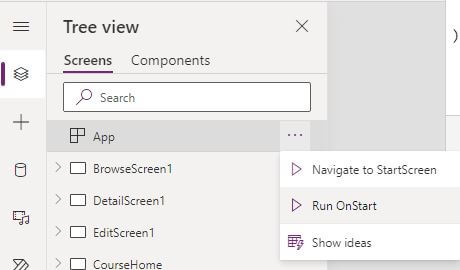
It’s a good idea to use ClearCollect() instad of Collect() on the App.OnStart property, as the code will run only the first time when the user lunch the application.
Now we have a collection with the data that saved locally to the app, so now we can write a code to save the colCourses locally. To save it locally, You can use the SaveData() formula.
Step 3: Saving your data using SaveData function
These functions can now be used when playing an app in a web browser as an experimental feature. This feature is disabled by default. To enable, navigate to Settings > Upcoming features > Experimental > Enabled SaveData, LoadData, ClearData on web player.” and turn the switch on.
After collecting the data you need to save it locally on your devise to load it and use it while the app is offline.
Syntax: SaveData( Collection, Name )
- Collection – Required. Collection to be stored or loaded.
- Name – Required. Name of the storage. The name must be same to save and load same set of data.
SaveData(colCourses,"colCourses")SaveData function Stores a collection under a specific name for later use. It means that if a collection has already been created using the Collect or ClearCollect functions, it can be saved locally under a specific name for future use.
Step 4: Getting your data back using LoadData function
How can we load the local collection colcourses from the locally saved data structure when we’re offline? we can perform that using the LoadData function
LoadData function: re-loads a collection by name that we saved with SaveData function before.
Syntax: LoadData( Collection, Name [, IgnoreNonexistentFile ])
- Collection – Required. Collection to be stored or loaded.
- Name – Required. Name of the storage.
- IgnoreNonexistentFile – Optional. A Boolean value indicating what to do if the file doesn’t already exist.
LoadData(colCourses,"colCourses")Show a list of records while the app is offline
To show a list of records, the app should be connected to the internet at least once
Now the whole formula that will be in the Onstart property of the app to retrieve the records should be as the below formula
If(
    Connection.Connected,
    ClearCollect(
        colCourses,
        Courses
    );
    SaveData(
        colCourses,
        "colCourses"
    ),
    LoadData(
        colCourses,
        "colCourses",
        true
    )
)
We load records from the data source into the collection “colCourses” and save the collection’s records in a local cache file. If there is no internet connection, we will use locally stored data to load into the collection.
Now if you want to view your data in a gallery control, You will write the bellow formula in the items property to check first the connection mode , if the app is connected then it will retrieve the data directly rom your data source ” the sharepoint list here the Courses” otherwise it will retrieve the data from the collection that stored in your device “colCourses”
If(
Connection.Connected,Courses,colCourses)
This video will learn you how to create Offline app using Dataverse table in Arabic
- You can use a timer or a button to save your data while the app connected to the internet.
- Open the app using Power Apps Mobile on a mobile device that’s connected to the Internet.
- Disconnect the device from the Internet by enabling the device’s airplane mode and disabling wi-fi.
- While the device is offline, add some data locally to the collection
- Reconnect the device to the Internet by disabling the device’s airplane mode and enabling wi-fi.
- If you use a button, you have to press it to get the data you saved or update locally to your data source, or if you use a timer control, it will do it for you within the time you define to the timer.
You have to take in consideration that, there is a lot of work that needs to be done in your application to make it work while using PowerApps offline mode.
For example for new records ,Create a collection for all new items that will be called by the ‘Collect’ function on the data source when it comes back online. and Change the ‘OnSelect‘ property of the save button to either submit the form or add the item to the collection locally depending on the connection state that we checked using Connection.Connected . and same done for the updtating or the deleted item, you have to Handle conflicts that may happen if multiple users update the same item at different points. If the app is online, then the user will know when the changes are being submitted that there is a conflict, and can resolve immediately.
Example PowerApps Offline Adding new records
we should use a new column to identify whether the user add a new item or edit an existing one, for example here is the flag column It’s a text field. It will be set to new when we add a new record and set it to update as soon as we’ve some changes to the specific record. we want to have an indication of which record has been changed to later sync it back to the Courses SharePoint list
first we will check the connection,
- If the app is online add the records directly to our SharePoint list
- else add the data to the collection and use the flag field with new to identify that the record is new or changed
- and save data using the SaveData function to load them again while the app is online
If(
    Connection.Connected,
    Patch(
        Courses,
        Defaults(Courses),
        {
            Title: "powerapps"
        }
    )
    ,
    Collect(
        colCourses,
        {
            Title : "powerapps",
            flag: "New"
        }
    );
    SaveData(
        colCourses,
        "colCourses"
    )
)
when the app is online you can add the records that identified with “New” in the flag field to Syncing newly created record in our collection colCourses with the SharePoint list
If(
    Connection.Connected,
    ForAll(
        colCourses,
        If(
            flag = "New",
            Patch(
                Courses,
                Defaults(Courses),
                {SharepointfieldName: CollectionfieldName}
            )
        )
    )
)
While synching the PowerApps offline data with the data source we are checking the flag whether it is a new record or updated record. If it is an updated record we are updating in the original data source.


No comments:
Post a Comment